
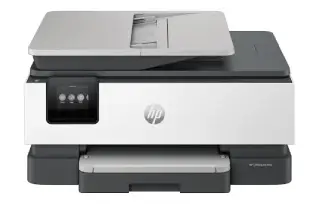
Overview
The OfficeJet Pro 9015 is aimed squarely at small businesses that would rather not buy a colour laser. It handles the whole document workflow — print, scan to email or cloud, copy, fax — and the Smart Tasks feature in the HP Smart app lets you build one-button shortcuts for the scans you repeat every week.
Security is the other pitch. Password-protected settings, encrypted connections and firmware validation are features that used to be reserved for larger machines. Worth knowing before you buy: this printer participates in HP's Instant Ink programme, and printers enrolled in it behave differently when a subscription lapses.
Key specifications
- Type: Colour inkjet all-in-one (print, scan, copy, fax)
- Print speed: Up to 22 ppm black, 18 ppm colour
- Paper handling: 250-sheet tray, 35-page ADF
- Two-sided printing: Automatic
- Display: 2.65-inch colour touchscreen
- Connectivity: Wi-Fi, Wi-Fi Direct, Ethernet, USB
- Mobile printing: HP Smart app, AirPrint, Mopria
- Ink: HP 962 / 962XL series
Specifications vary by region and revision. Check the model number printed on the front of the machine before ordering consumables or parts.
Features at a glance
- Colour all-in-one: print, scan, copy and fax
- 35-page automatic document feeder
- Automatic two-sided printing
- Smart Tasks shortcuts for repeat scan-and-file jobs
- Self-healing Wi-Fi and business-class security settings
Who the HP OfficeJet Pro 9015 is for
Small offices and busy home offices that want colour output, real scanning throughput and network security controls in a single machine.
Common problems and how to fix them
Scan to email or scan to folder stops working
Nine times out of ten it is credentials, not the printer. Mail providers that have enforced modern authentication will reject the printer's saved password, so you need an app-specific password. For scan-to-folder, check the network share still exists and the account has write access.
Printhead problem or 'printer failure' message
Power the printer off with the front button, unplug it from the wall for 60 seconds, plug it directly into an outlet rather than a surge strip, and switch it back on. That clears a surprising share of these errors. If it returns immediately, the printhead needs to be reseated or cleaned.
Printing stopped after an Instant Ink subscription ended
Instant Ink cartridges only work while the plan is active. Once it ends the printer needs standard HP 962 cartridges. Cancelling the plan without ordering replacements is the single most common reason this model suddenly refuses to print.
Frequently asked questions
Does the HP OfficeJet Pro 9015 print double-sided?
Yes, automatic two-sided printing is built in, and the document feeder handles two-sided originals for scanning and copying.
Can it connect by Ethernet?
Yes. It has Wi-Fi, Wi-Fi Direct, Ethernet and USB.
Do I have to use Instant Ink?
No. It is optional. You can buy standard HP 962 or 962XL cartridges instead — just do not mix the two systems and expect the plan cartridges to keep working after cancelling.
Still stuck?
Our technicians work with HP every day. Call +1-8887342713 any time, or send us the details and we will get back to you. You may also want to read our HP guide.